How to Use an AI Image Upscaler – Dzine Upscaler 2.0
You finally found the perfect photo – maybe it’s a cherished family portrait, a product shot for your online store, or a piece of digital art you’ve been working on for weeks. But when you zoom in or try to print it, the image falls apart: blurry edges, muddy textures, and that telltale pixelated look. Traditional resizing tools only make things worse. What you need is an AI image upscaler.
In this guide, you’ll learn exactly what AI upscaling is, how to pick the right tool, when to use it, and how to get stunning results with Dzine Upscaler 2.0 – one of the most powerful free AI upscalers available today.
What Is an AI Image Upscaler?
An AI image upscaler is a tool that uses machine learning to enlarge images while intelligently reconstructing detail – rather than simply stretching pixels. Traditional upscaling (like dragging the corner of an image in Photoshop) produces blurry, artifact-ridden results because it has no information about what the missing pixels should look like.
AI upscalers work differently. They are trained on vast datasets of high-resolution and low-resolution image pairs, teaching the model to predict what a sharper, larger version of any image should look like. When you upload a photo, the AI analyzes patterns, textures, and edges in the original, then generates realistic high-resolution detail that matches the image’s natural characteristics.
The result? Images that look genuinely enhanced – not just bigger. Colors stay vibrant, lighting stays natural, and fine details like fabric texture, skin pores, or architectural lines are recovered rather than smeared.
How to Choose the Right AI Image Upscaler
Not all upscalers are created equal. Here’s a look at some popular options on the market and what sets them apart.
- Gigapixel AI (Topaz Labs) is a desktop-based tool well-regarded for its detail enhancement. It can upscale images by large factors and is popular among professional photographers, though it requires a paid license and local installation.
- Upscale.media is a lightweight online option that’s easy to use for quick jobs. It works well for basic upscaling tasks but offers fewer enhancement controls compared to full-featured platforms.
- Let’s Enhance is a browser-based tool with a clean interface. It performs well on photographic content and supports batch processing on paid plans, making it suitable for e-commerce workflows.
- Dzine Upscaler 2.0, however, stands out as the most versatile and accessible option – especially for users who want professional-quality results without downloading software or paying upfront.
Dzine Upscaler 2.0: Overview
Dzine is an all-in-one AI creative platform, and its Upscaler 2.0 is the crown jewel of its image enhancement suite. Available directly at, it is free to use and requires no installation. Whether you’re a photographer, marketer, content creator, or casual user, Dzine Upscaler 2.0 delivers stunning results in seconds.
Key Features of Dzine Upscaler 2.0
- Up to 16x Upscaling: Dzine supports resolution enhancement up to 16x the original size – far beyond the 2x or 4x limits of most free tools. This makes it ideal for print projects, large-format displays, and high-resolution portfolios.
- Neural Network–Powered Detail Reconstruction: Instead of guessing with simple algorithms, Dzine’s advanced neural network analyzes image structure and generates authentic pixel-level detail that matches the original’s character.
- No Artifacts or Halos: Unlike older upscaling methods that introduce unnatural sharpening halos around edges, Dzine preserves natural lighting and smooth transitions.
- Face Refinement Mode: When upscaling portraits, this dedicated mode enhances facial features — skin texture, eye clarity, hair detail — without the over-processed look of other tools.
- Noise Reduction & Color Preservation: The AI simultaneously removes grain and corrects color during upscaling, so you get a clean, vibrant result in one step.
- Free & Browser-Based: No subscription required to get started. Dzine also offers a 7-day free trial for its premium features, with 100 free credits on registration.
How to Use Dzine Upscaler 2.0: Step-by-Step
Getting started with Dzine Upscaler 2.0 is straightforward – no technical skills required.

Step 1: Open the Tool
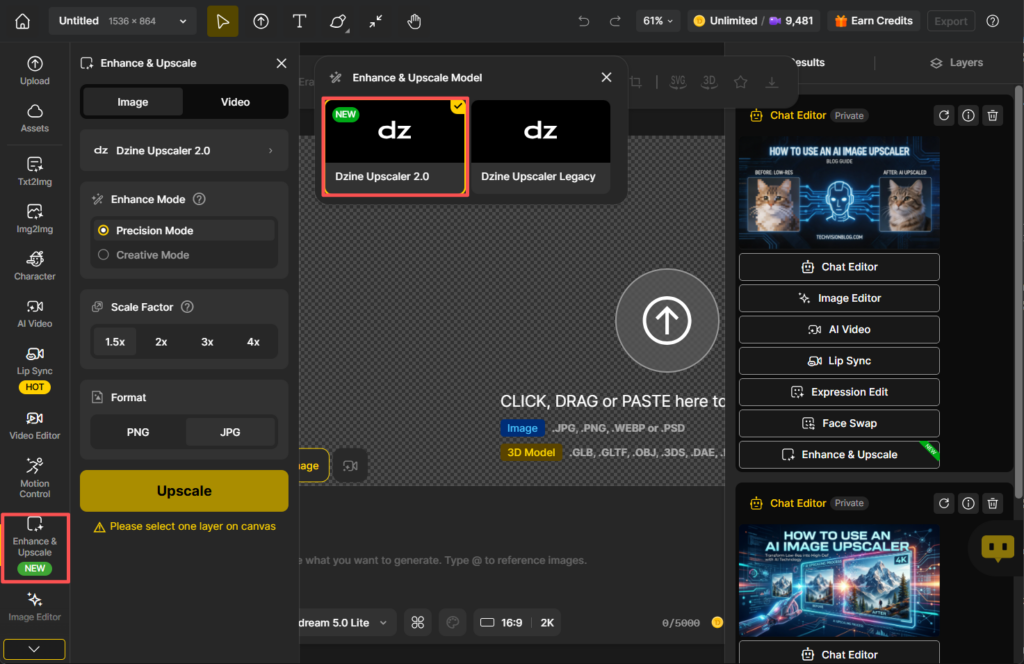
Go to Dzine AI and navigate to Upscale & Enhance from the main menu. Select the Image tab.
Step 2: Upload Your Image
Click to upload your image or drag and drop it directly into the interface. Dzine supports common formats including JPEG and PNG. Then, select Dzine Upscaler 2.0 as the model.
Step 3: Select Your Upscaling Factor
Choose your target resolution: 1.5x, 2x, 3x, or 4x.
Step 4: Click Upscale
Hit the Upscale button and let the AI process your image. Most images are ready in seconds.
Step 5: Preview and Download
Preview the image. When you’re satisfied, click Download to save your high-resolution image in full quality – no watermarks.
How to Choose the Right Upscaling Resolution
Choosing the right upscale factor is just as important as choosing the right tool. Bigger isn’t always better – over-upscaling can introduce artifacts or an artificial look.
- Use 1.5x or 2x when you need a modest boost – for example, preparing a web image for a higher-density display, or slightly enlarging a product photo for an e-commerce listing.
- Use 3x or 4x for more significant enlargements, such as converting a social media image into a printable format, or upscaling AI-generated art for a high-resolution portfolio.
- Use 8x or higher only when the source image has enough detail to support it. This is best suited for archival restoration projects, large-format printing (posters, banners), or when recovering very old, low-resolution photographs.
A good rule of thumb: start with a lower factor and preview the result before committing to a larger one. Dzine’s built-in preview feature makes this easy – always check before downloading.
When Should You Use an AI Image Upscaler?
AI upscaling is useful in more situations than most people realize. Here are the most common use cases:
1. Restoring old or vintage photos: Scanned family photos and historical images often have very low resolution. AI upscaling recovers lost texture and repairs damage from aging, producing print-ready versions of irreplaceable memories.
2. E-commerce product photography: Blurry or low-resolution product images reduce buyer trust and hurt conversion rates. Upscaling ensures every detail – fabric weave, surface finish, fine craftsmanship – is clearly visible.
3. AI-generated artwork: Images created by AI art generators are often produced at lower resolutions. Upscaling them before printing or sharing in a portfolio adds a layer of professional polish.
4. Social media and content creation: Images downloaded from older platforms or resized for different aspect ratios often lose quality. Upscaling restores clarity before re-publishing.
5. Real estate photography: Older listing photos can be brought up to modern standards, making spaces look more inviting and detailed without expensive reshoots.
Conclusion
AI image upscaling has fundamentally changed what’s possible with low-resolution photos. Whether you’re rescuing a faded family portrait, preparing product images for a premium e-commerce store, or scaling AI artwork for a gallery print, the right upscaler makes all the difference.
Dzine Upscaler 2.0 combines neural network precision, ease of use, and generous free access in a way that few competitors can match. With support for upscaling up to 16x, smart face refinement, noise reduction, and zero installation required, it’s the smartest place to start – and often the only tool you’ll need.
Ready to transform your images? Try Dzine Upscaler 2.0 for free now.