
Kling AI Image to Video

Turn a single image into a high-quality video in seconds. Dzine gives you direct access to Kling AI image to video generation - with motion control, start/end frame, avatar creation, motion brush, and cinematic camera movement, all in one place. Try it for free now.

Click or drag here to upload images
Uploading via drag and drop

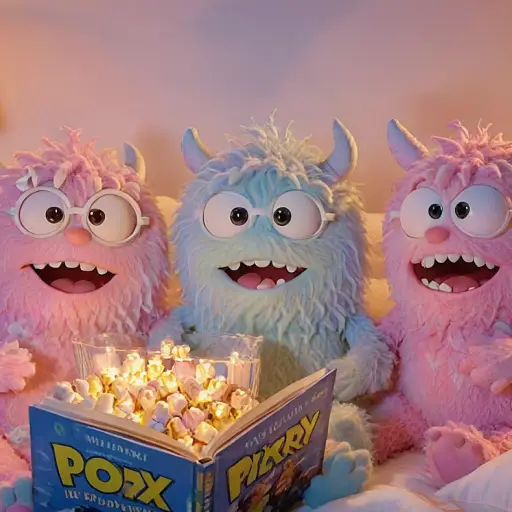
Try Kling AI image to video with one of these

Animate Any Image with Kling AI

Kling.ai image to video technology is built by Kuaishou. It runs a 3D spatiotemporal attention engine that understands weight, momentum, and real-world object behavior. Your output looks like footage - not like a looping GIF or a slideshow with transitions.

Dzine integrates Kling AI image to video across its latest models, including Kling 3.0, Kling 2.1, and Kling 1.6. Upload a photo, write a prompt, and the AI generates smooth, physics-aware video with consistent characters and natural motion. Dzine makes image to video Kling AI accessible to creators, marketers, educators, and businesses.

How to Use Kling AI Image to Video on Dzine

Step 1: Upload Your Image and Enter a Prompt

Go to Dzine's Chat Editor dashboard and select AI Video. Upload an image. Then write a prompt describing the motion, mood, or scene you want.

Step 2: Select Your Kling AI Model

Choose from Kling 3.0, Kling Video O1, or Kling 2.5 depending on your needs.

Step 3: Generate and Download

Click Generate. Preview your video, then download a watermark-free file ready to publish anywhere.

Powerful Kling AI Features for Every Creator

From precise start/end frame control to cinematic camera movements, AI avatars, and seamless video extension - Kling AI on Dzine gives you professional-grade video tools with no setup required.

Kling AI Lip Sync
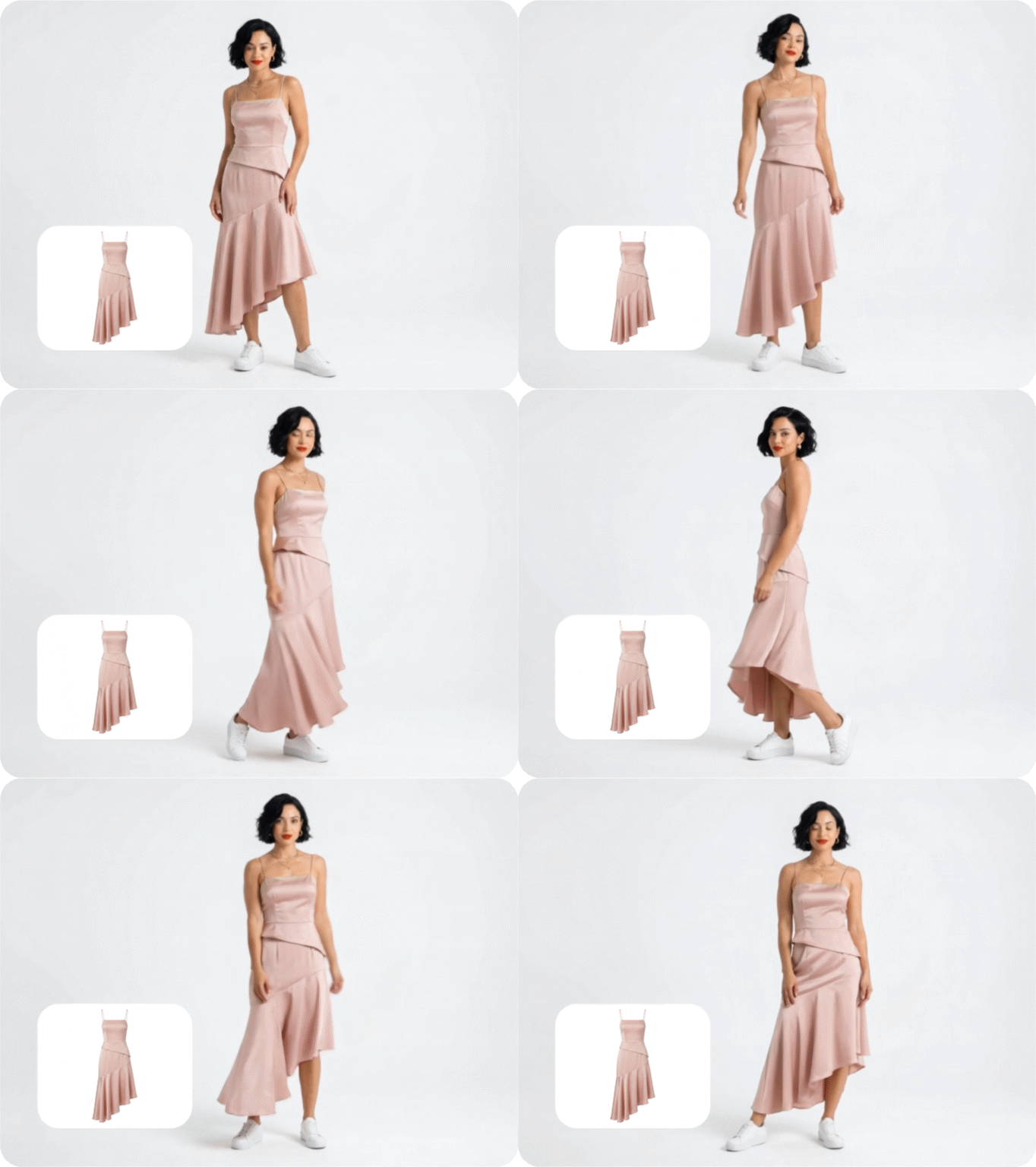
Kling Virtual Try-On
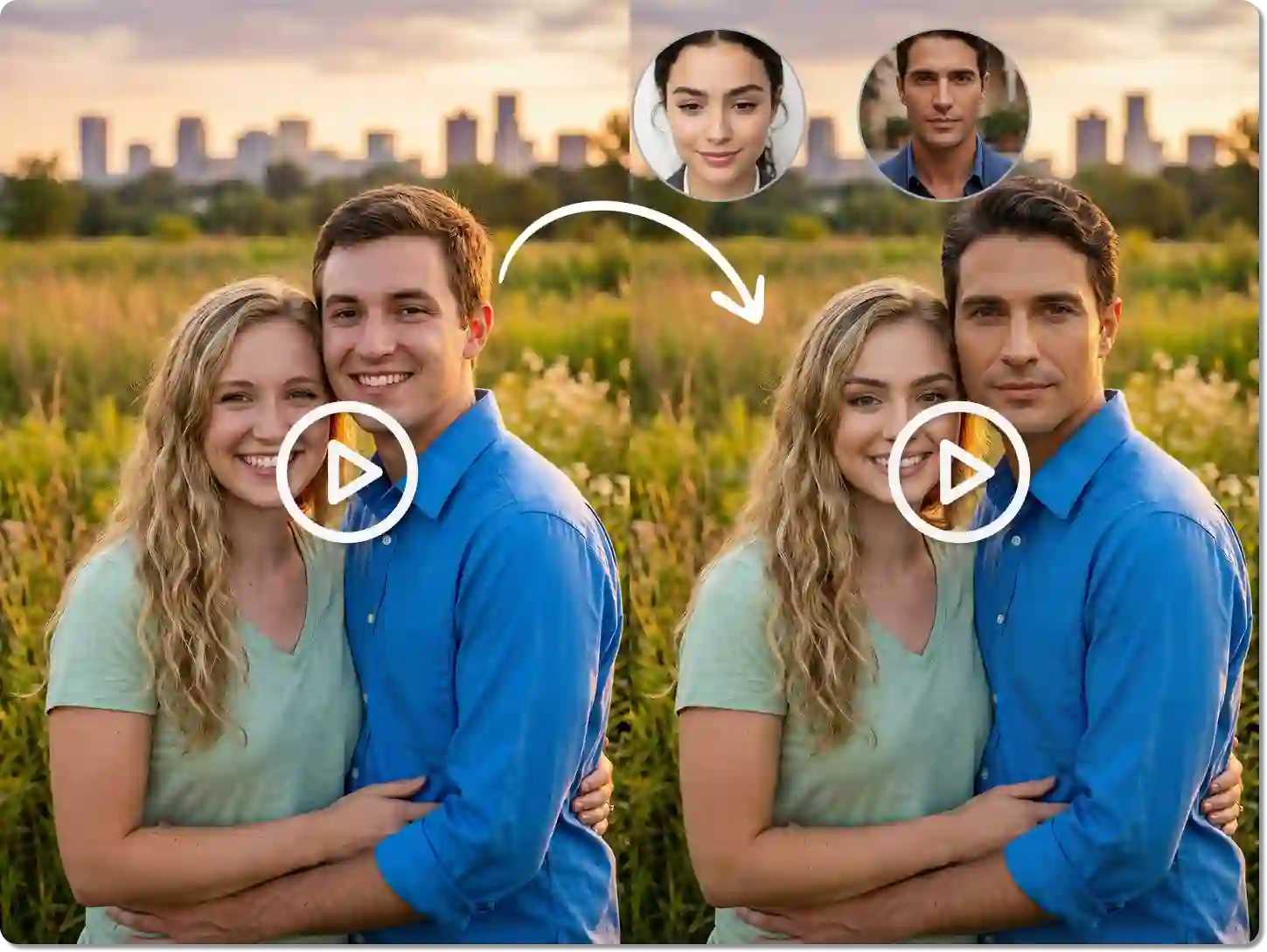
Kling Face Swap to Video
Animate Characters with Real Speech

Animate Characters with Real Speech

Kling AI image to video includes a lip sync mode that maps audio to character mouth movements. Upload a portrait image, add a script or audio file, and the AI generates a talking video with accurate mouth shapes and emotional expression.
Kling Motion Control

Kling Motion Control extracts motion from a reference video and applies it to your static image. Upload a three-to-thirty-second reference clip showing the action you want - walking, dancing, gesturing - and the AI reconstructs that movement frame by frame onto your character.

Character ImageSame MotionOutput Video
Cartoon characterDancing manDancing cartoon

Kling Multi-Shot

Kling Multi-Shot lets you generate a structured, multi-scene video from a series of images or prompts in a single generation. Instead of creating clips one by one and editing them together, you define each shot in sequence and Kling AI produces a continuous video with consistent characters, lighting, and visual style across every scene.

Image 1Image 2Image 3Output Video
image 1image 2image 3output video

Kling AI Start/End Frame

The Kling AI Start/End Frame feature gives you precise control over the first and last moments of any generated video. This eliminates one of the biggest frustrations with AI video - unpredictable starting and ending states.

Specify Start Frame Only

Upload one image as the opening frame. Kling AI generates everything after it - motion, environment, and character behavior - based on your prompt. Use this when you have a clear starting point but want the AI to develop the scene naturally from there.

ImageOutput Video
imageoutput image

Specify End Frame Only

Upload an image as the final frame. The AI works backwards, generating motion that leads convincingly to that endpoint. This works well for transformation content, before/after reveals, product unboxing sequences, and countdown finishes.

ImageOutput Video
imageoutput image

Specify Both Start and End Frames

Upload two images - one as the opening, one as the close. Kling AI generates all intermediate motion that transitions between them. This is the most controlled option, ideal for product reveals, character transformations, fashion changes, and seamless loop creation.

Start FrameEnd FrameOutput Video
start frameend frameoutput video

Kling AI Avatar

Kling AI Avatar 2.0 on Dzine generates photorealistic talking avatar videos from one portrait image. Add a script or upload an audio file and the avatar speaks with accurate lip sync, natural head movement, and stable hand gestures.

ImageOutput Video
imageoutput video

Kling Motion Brush

Kling Motion Brush gives you direct control over individual element motion within your image. Draw a path on any object - a hand, a product, a cloud, fabric in the wind - and the AI animates that element along the path you defined.

ImageOutput Video
imageoutput image

Kling Camera Movement

Kling AI Camera Movement adds professional cinematography to your generated video. Choose from push-in, pull-out, pan left, pan right, tilt up, tilt down, orbit, and tracking shot presets. Each movement type controls how the AI frames and follows your subject throughout the clip.

Image 1Image 2Image 3Image 4Output Video
image 1image 2image 3image 4output video

Why Try Kling 2.5 on Dzine AI?

Advanced AI Models

Advanced AI Models

Adcaned AI image and vidoe models such as Google Veo 3.1 and Nano Banana Pro to deliver high-quality, varied video content that makes your work truly distinctive.

One Click to Generate

One Click to Generate

Produce polished visuals instantly, apply styles auto-magically, or refine designs without pro skills.

Free Trial

Free Trial

Access core AI tools for free trial, experiment with creations freely, or test features before committing.

High Quality Results Export

High Quality Results Export

Export high-res visuals in multiple formats, preserve every fine detail, or use them for print & digital.

Watermark Free

Watermark Free

Get clean, watermark-free outputs, use visuals for commercial campaigns, or share them seamlessly.

Online Platform No Donwloading

Online Platform No Donwloading

Create on the web directly, skip software installation, or design anytime anywhere on any device.

What Our Users Said

Kling AI Image to Video Changed My Content Workflow

I used to spend hours editing product videos. Now I upload one image, write a short prompt, and Kling AI generates a polished motion clip in under two minutes. The start/end frame feature gives me clean before/after transitions for my skincare brand. My ad click-through rate improved noticeably the first week I switched to video content.

Priya NairE-commerce Brand Owner

Motion Control Is the Feature I Didn't Know I Needed

I create fitness content and needed to show exercise demonstrations without filming every variation. Kling AI image to video with Motion Control lets me apply a reference movement to different character images. The motion transfers cleanly, the faces stay consistent, and the output looks like proper footage. It saves me a full shoot day every month.

Jake MercerFitness Content Creator

How Long Does Kling AI Take to Make a Video? Less Than I Expected

I was skeptical about generation time, but most of my Kling.ai image to video clips are ready in one to two minutes on Dzine. The 4K output from Kling 3.0 is broadcast quality. I use it for brand explainers and client pitch videos. No production agency needed anymore - just a reference image and a clear prompt.

Sofía RuizBrand Strategist

Master Kling AI Video Creation | Dzine AI Tutorial

FAQ

What is Kling AI image to video?

Kling AI image to video converts a static image into a dynamic video clip. On Dzine, you access it through Kling 3.0, Kling 2.1, and Kling 1.6. Upload an image, write a motion prompt, and the AI generates a physically realistic video from 1080p to 4K.

How to use Kling AI image to video on Dzine?

Open the AI video generator on Dzine and go to the Image to Video tab. Upload your image and enter a motion prompt. Select your Kling model, click Generate, and download the finished clip in one to three minutes.

How long does Kling AI take to make a video?

Most clips finish in one to three minutes on Dzine. Short five-to-ten-second videos typically complete in under two minutes. Kling 3.0 at 4K takes slightly longer than Kling 2.1 at 1080p. Avatar videos up to five minutes take proportionally more time.

What is the difference between Kling.ai image to video and Kling Motion Control?

Standard Kling.ai image to video generates motion from a text prompt. Kling Motion Control adds a reference video as a second input - the AI extracts motion from it and applies it to your image. Use Motion Control when you need exact, repeatable movement from a real-world reference.

Can I control where the video starts and ends with Kling AI?

Yes. Upload one image as the start frame, one as the end frame, or both. When both are provided, Kling AI generates all motion between them. Available in Kling 1.6 and Kling 2.1 on Dzine.

What types of images work best for Kling AI image to video?

High-resolution, well-lit images with a clear subject work best. Full-body or half-body portraits animate better than tight headshots. Product photos with clean backgrounds produce cleaner output. Avoid heavy motion blur or partially obscured subjects. JPEG, PNG, and WEBP are all supported.

Is Kling AI image to video free to try on Dzine?

Yes. Dzine offers free credits on signup - no credit card needed. Higher-volume generation and advanced features like Kling 3.0 4K output and long-form avatar videos require a paid plan. Check Dzine's pricing page for current details.